


Marking Attendance
Employees have multiple convenient ways to mark their daily attendance.
1. Web Portal
- Click the Add Attendance button on the dashboard.
- Select Check In to start your day.
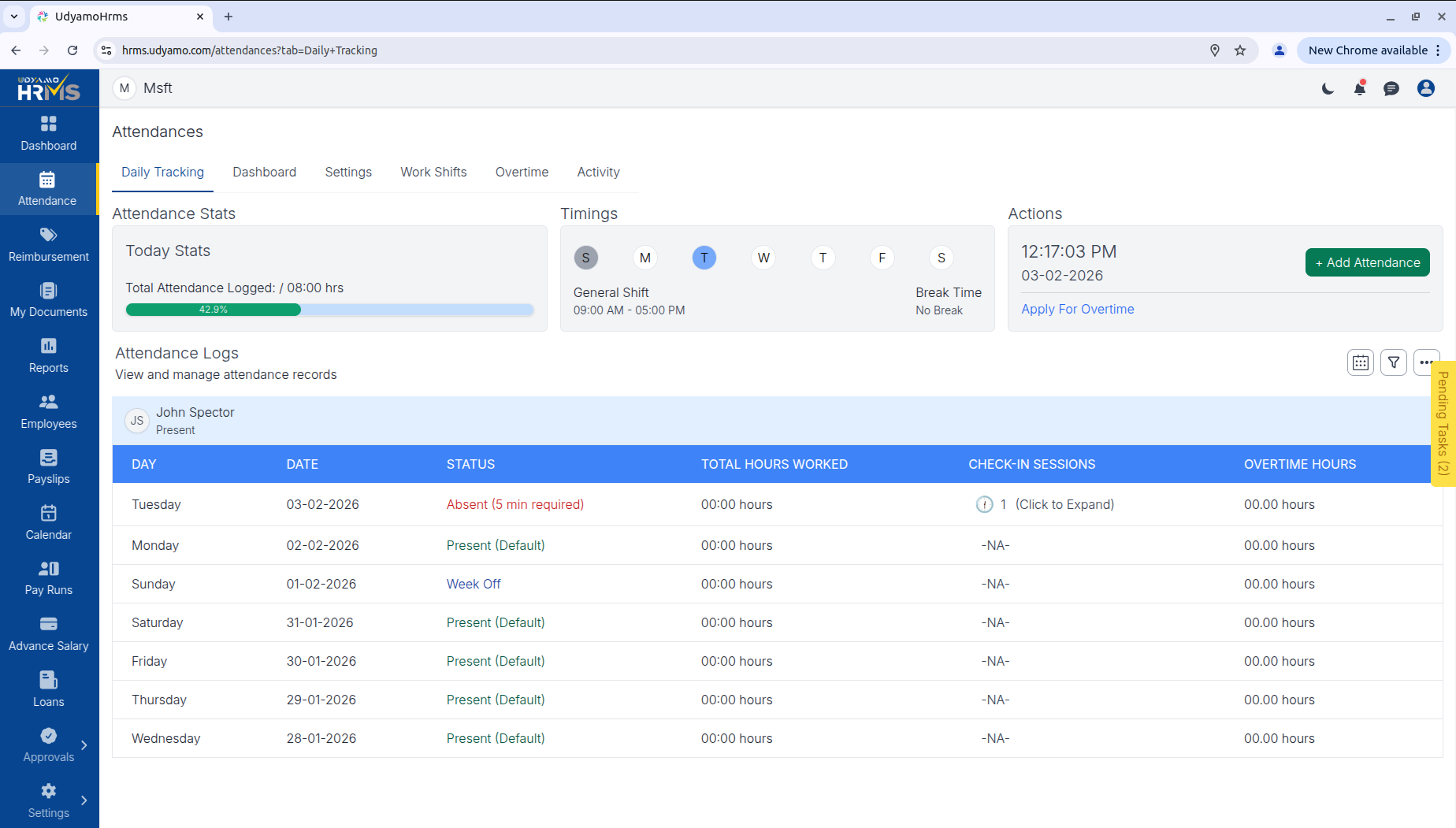 (Refer to the screenshot above - Add Attendance from Web)
2. Microsoft Teams Integration
Stay in your flow of work by marking attendance directly from Teams:
- Chat Command: Type
attendancein the Udyamo bot chat. - Daily Card: You will receive a Check-in card daily before your shift starts. Simply click to mark attendance.
Attendance Settings Configuration
Configure the default behavior for attendance processing via Settings > Attendance.
Default Attendance Rules
If attendance or time data is missing, the system applies these defaults during payroll processing:
- Default Status: Choose to mark as Present or Absent.
- Minimum Duration: Set the minimum time required after check-in before a check-out is allowed (e.g., 10 Minutes).
- Check-in/out Limit: Maximum number of times allowed per day (e.g., 15 Times).
Check-out Policy
Select how the system handles forgotten check-outs:
- Action: Options include Ignore, Show in Payroll, or Auto-checkout at end of day.
- Mark Absent Rule: Automatically mark employee as Absent if in-office duration is less than a specific threshold (e.g., 5 Minutes).
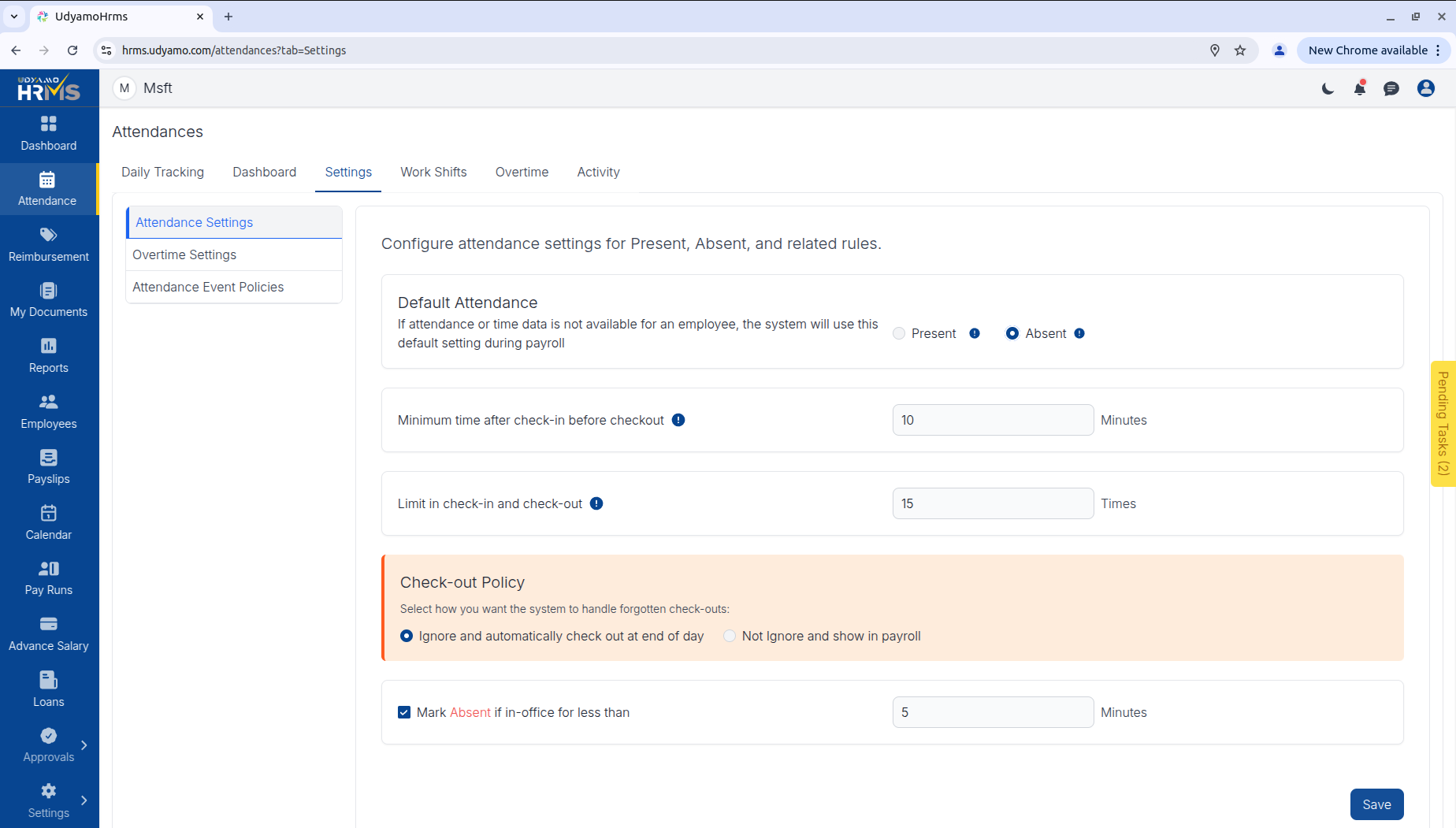 (Refer to the screenshot above - Default Attendance Settings)
Overtime Policy
Define rules for compensating extra work hours.
Regular Overtime
- Status: Enable or Disable.
- Multiplier: Set the rate multiplier for regular days (e.g., 1.0x).
- Limits: Define minimum (e.g., 30 mins) and maximum (e.g., 120 mins) allowable overtime minutes per day.
Weekend Overtime
- Status: Enable or Disable overtime calculations for weekends.
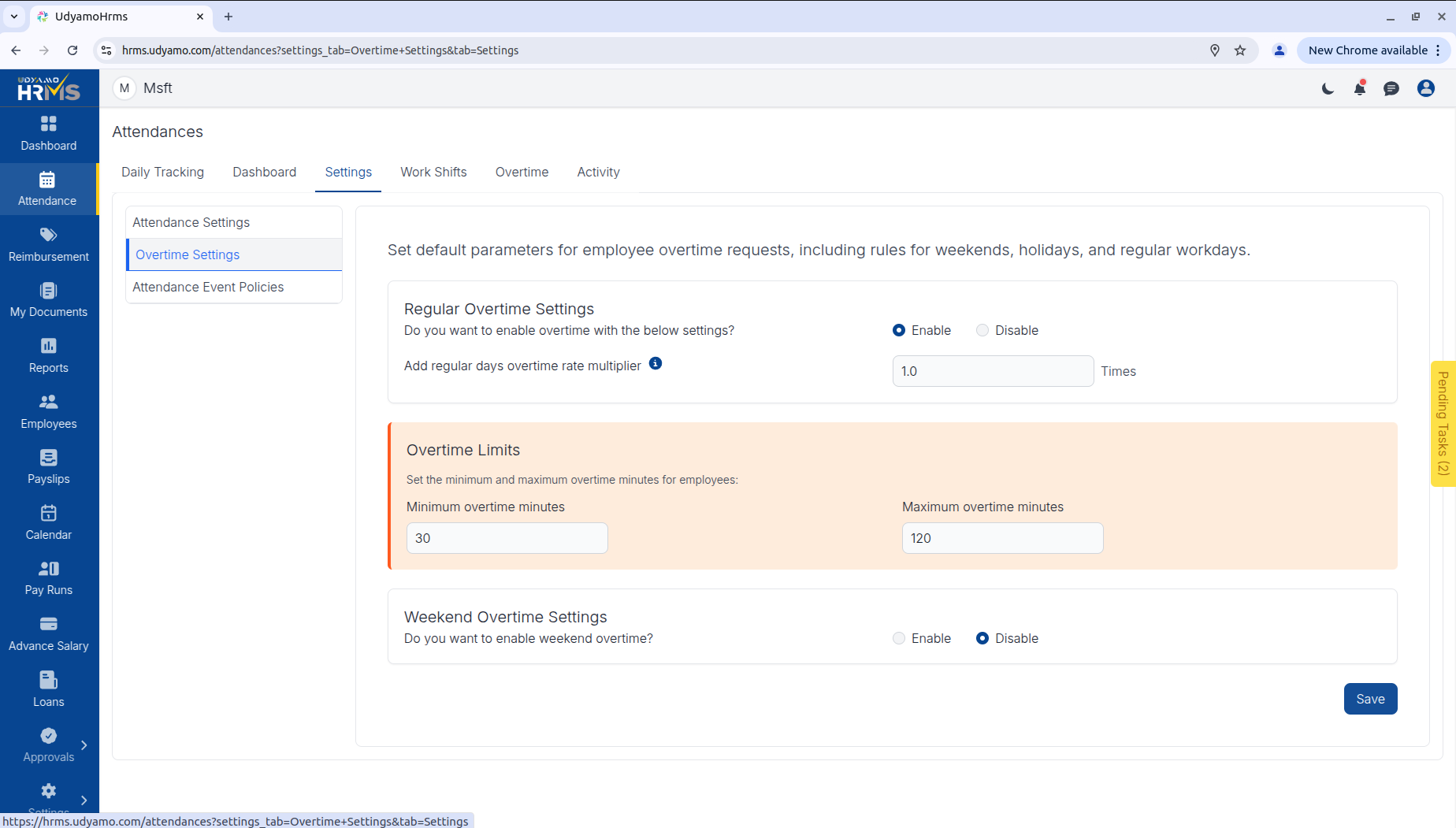 (Refer to the screenshot above - Overtime Policy Configuration)
Attendance Event Policy (Attendance Rules)
The system automatically categorizes attendance events based on shift timings and allowed grace periods. This helps in tracking discipline and punctuality.
📝 Attendance Relaxation Guide
| Policy Type | Status | Allowed Minutes | Description |
|---|---|---|---|
| Early Coming | Auto | 30 | Arriving before shift start. Automatically tracked; no reason form required. |
| Late Coming | Reason | 30 | Arriving after shift start. Employee must submit a reason form if within allowed minutes; otherwise marked. |
| Early Going | Reason | 30 | Leaving before shift end. Employee must submit a reason form if within allowed minutes. |
| Late Going | Auto | 30 | Leaving after shift end. Automatically tracked; useful for tracking extra hours. |
Event Logic Details:
-
Early Coming:
- Example: Shift starts at 9:00 AM. Employee checks in at 8:45 AM.
- ✅ System marks as Early Coming.
-
Late Coming:
- Example: Shift starts at 9:00 AM. Allowed minutes: 10 mins.
- Employee checks in at 9:07 AM -> Must submit a late coming reason.
- Employee checks in at 9:15 AM -> ❗️ System marks as Late Coming (exceeds grace).
-
Early Going:
- Example: Shift ends at 6:00 PM. Allowed minutes: 10 mins.
- Employee checks out at 5:55 PM -> Must submit an early going reason.
-
Late Going:
- Example: Shift ends at 6:00 PM. Employee checks out at 6:30 PM.
- ✅ System marks as Late Going.
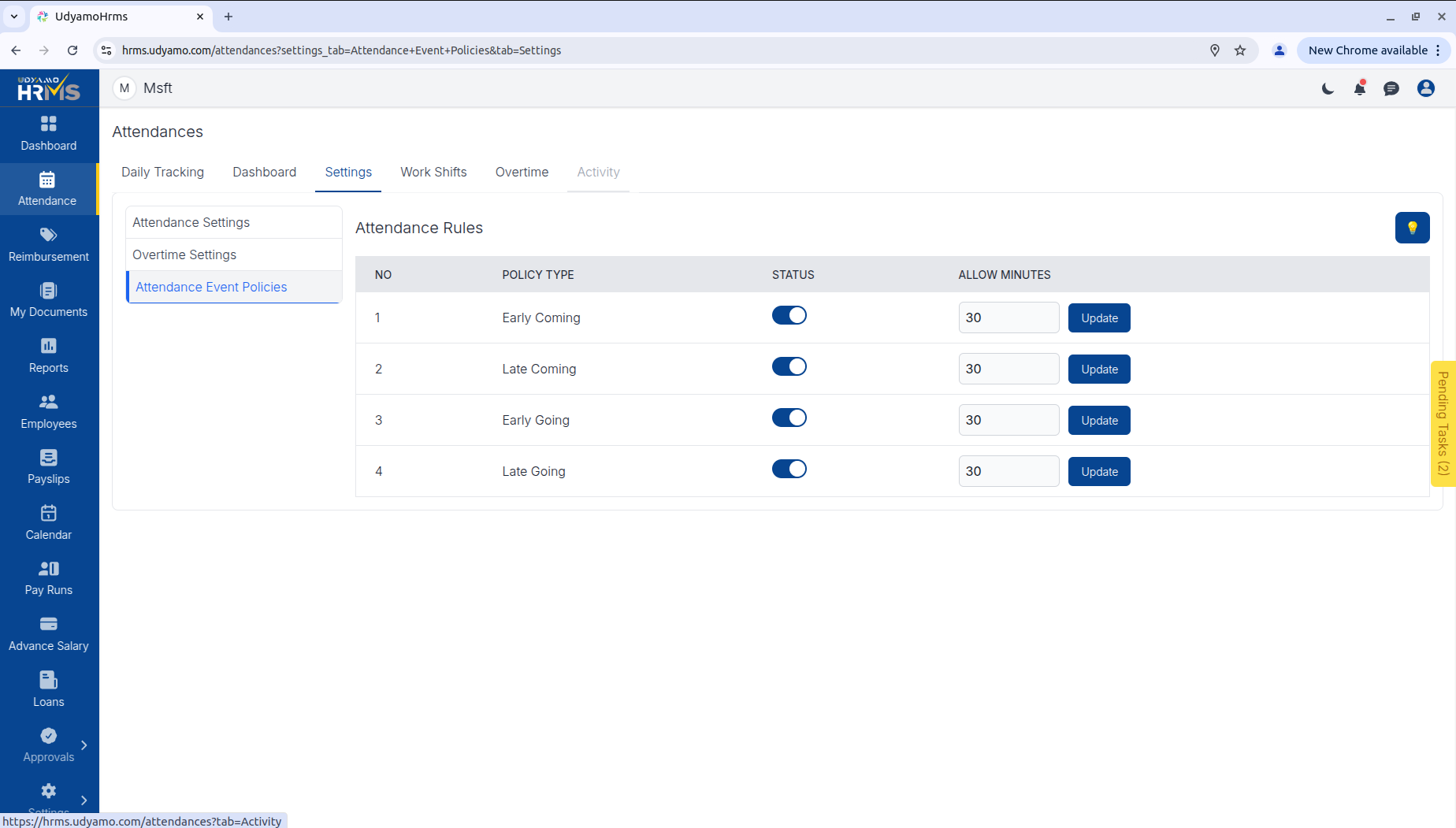 (Refer to the screenshot above - Attendance Event Policy)
Admin Analytics
Admins can access the Attendance Dashboard to view real-time data and historical trends.
- Status Overview: View total Present, Absent, and On Leave employees.
- Analytics: Visual charts for Late Arrivals, Early Departures, and Overtime trends.
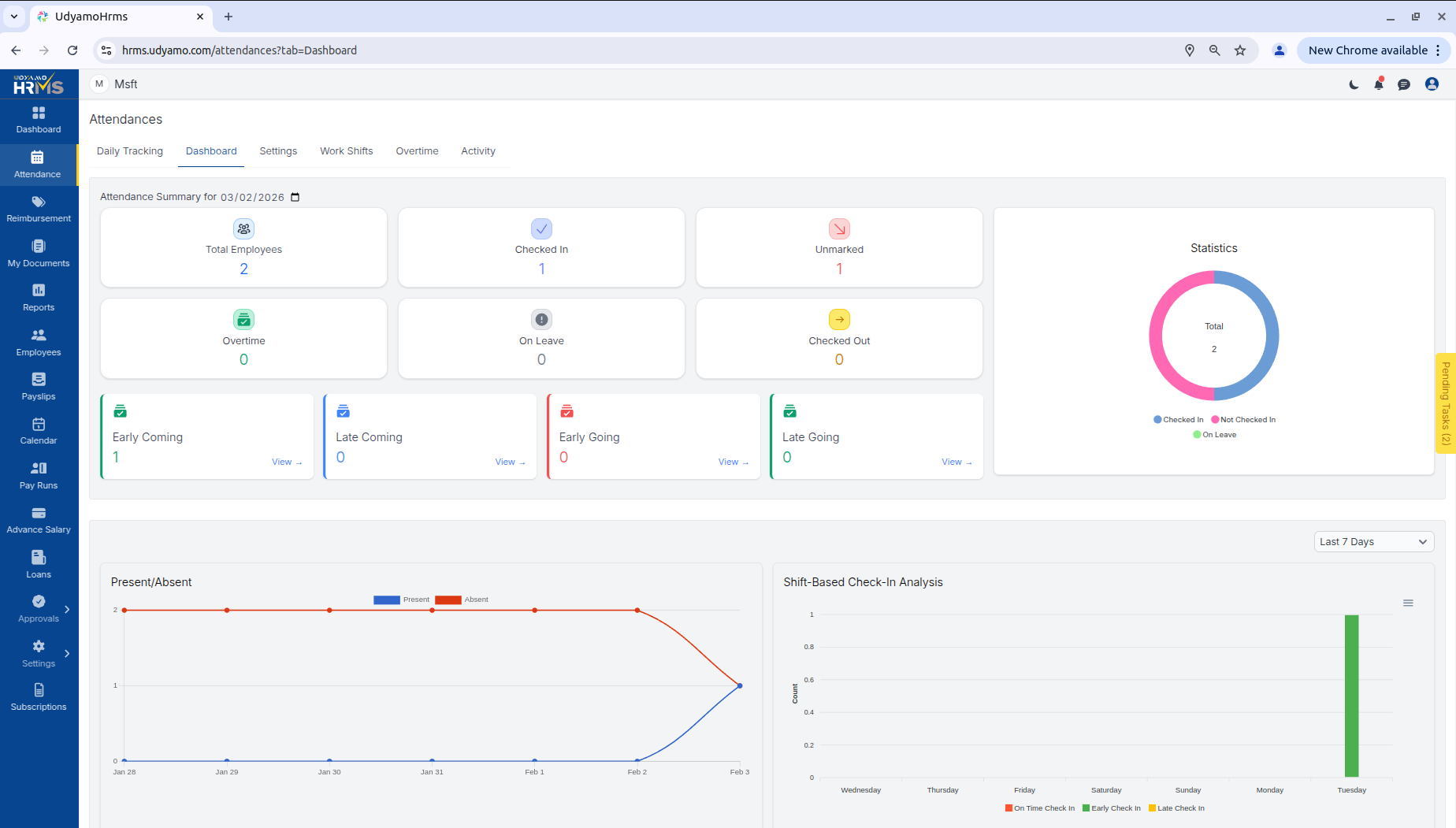 (Refer to the screenshot above - Attendance Dashboard Analytics)